
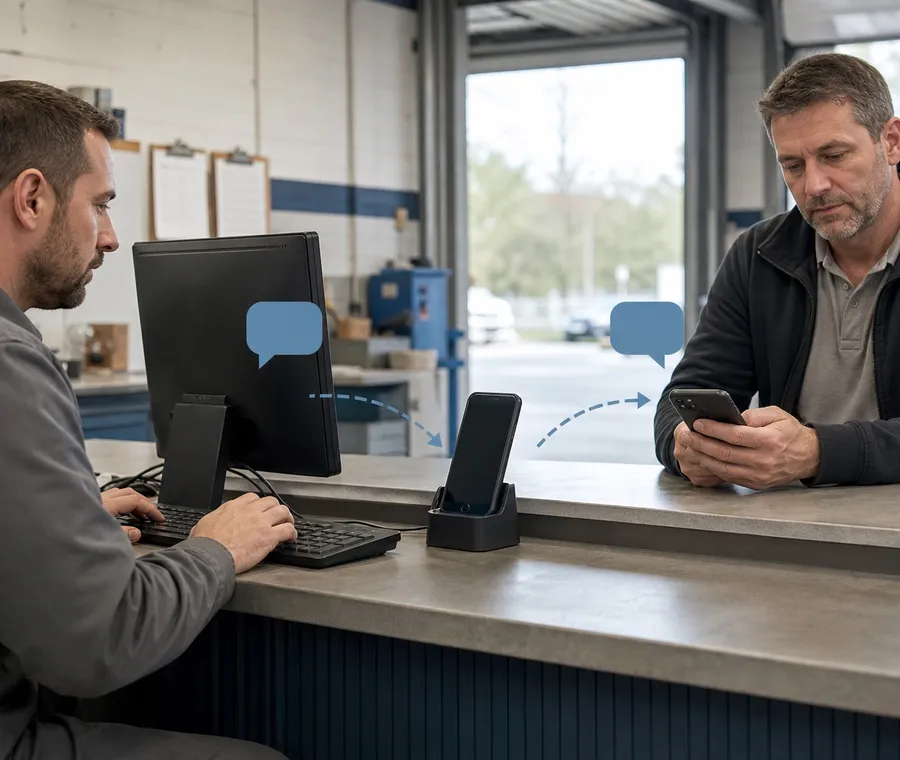

To send SMS from a computer, the computer still needs a route to a phone or messaging service. Google Messages and Phone Link mirror a paired phone; a VoxiSMS business workflow uses Zapier, Make, or Voxiplan on the computer while a connected Android phone and SIM handle delivery from your own number.
The useful choice is not simply “desktop or mobile.” It is whether you need a personal texting screen, a shared business view, or automatic messages triggered by the apps your team already uses.
Send SMS from a computer in a nutshell
- Use Google Messages for web when one person wants to text from a browser through a paired Android phone.
- Use Microsoft Phone Link when a Windows user wants to start and answer messages from a connected phone.
- Use VoxiSMS when a business event in Zapier, Make, or Voxiplan should send SMS through a dedicated Android phone and SIM.
- Voxiplan can show incoming and outgoing threads on a computer and let a team member reply from the dashboard.
- VoxiSMS adds no per-message fee; the SMS travels through the mobile plan already active on the Android device.
Building a business workflow? Start with the VoxiSMS integrations directory and choose the system that already holds the trigger or conversation.
Three ways to send SMS from a computer
The broad search for “send SMS online” covers different tools. The methods below all put a computer in front of the user, but they differ in who controls the workflow and what role the phone plays.
| Goal | Computer method | Phone’s role | Best fit |
|---|---|---|---|
| Write personal texts in a browser | Google Messages for web | The paired Android phone remains connected to Google Messages | One person’s conversations |
| Start and answer texts on Windows | Microsoft Phone Link | A paired phone supplies the messaging connection | One Windows user’s phone |
| Send business messages from app events | VoxiSMS with Zapier, Make, or Voxiplan | A registered Android phone and SIM send from the business’s real number | Operational messages, automations, and team replies |
Google Messages for web
Google Messages for web displays conversations from the Google Messages mobile app on a computer or Android tablet. Google says the computer connects to the phone to send SMS, and its current account-pairing flow allows multiple paired devices with one computer active at a time.
This is a direct option for personal texting. Pair the browser, open a thread, and type on the computer while the Android phone remains the sending device. On a shared or public computer, unpair the session when you finish.
Microsoft Phone Link
Microsoft Phone Link can start a new conversation from the Messages area on a Windows PC. Enter a contact name or phone number, open the thread, and write the message from the computer. Microsoft documents support for SMS and MMS, although the available functions vary with the paired phone.
Phone Link is useful when the Windows computer and phone belong to the same person. It is not an automation layer for events in a booking system, store, CRM, or spreadsheet.
VoxiSMS for business workflows
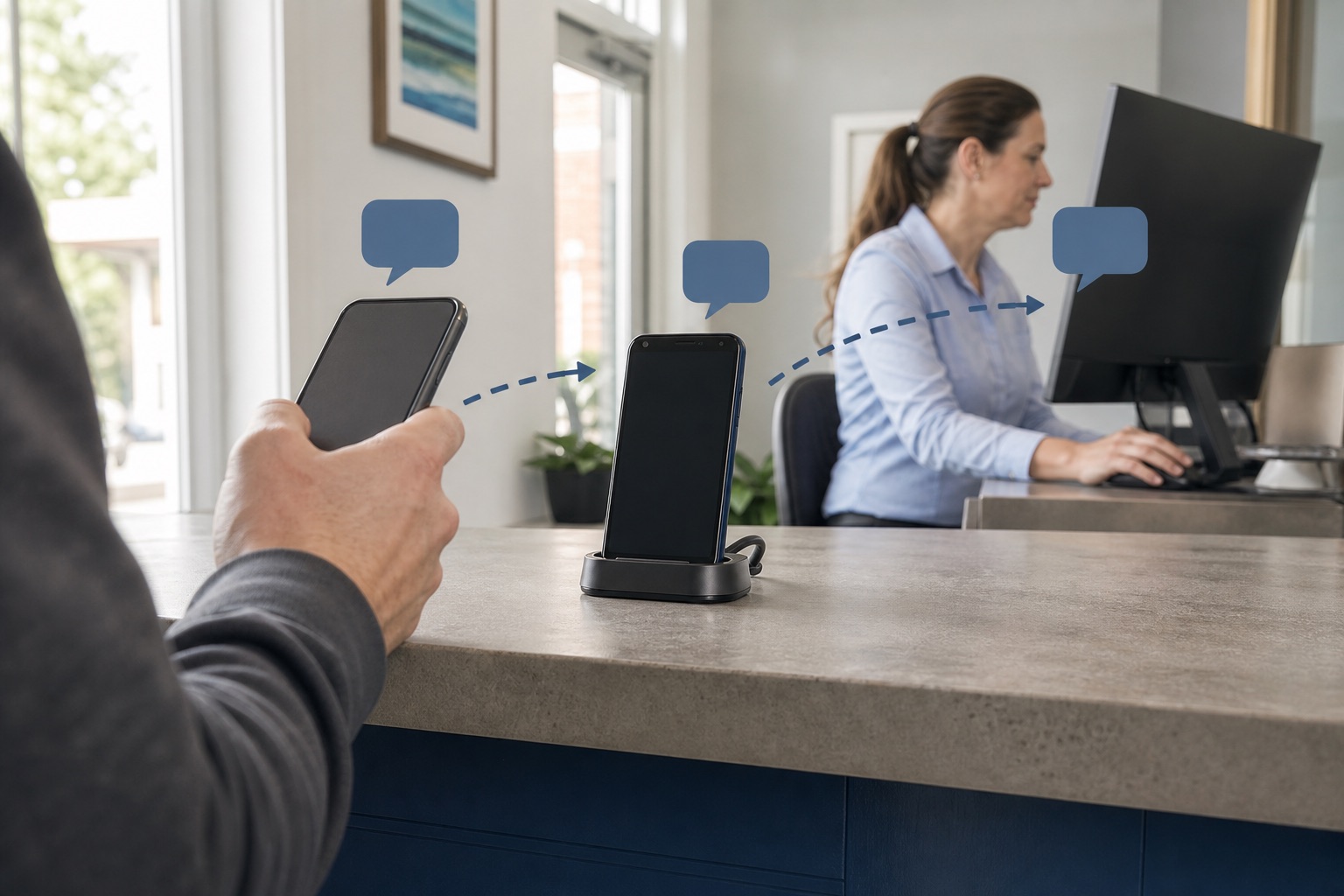
VoxiSMS gives the computer a different job. The computer runs the business app, automation editor, or shared messaging view. The Android phone runs the VoxiSMS app and sends SMS through its SIM.
For a new outbound message, an event in the connected app starts the workflow. For an existing conversation, Voxiplan’s VoxiSMS documentation confirms that a team can view incoming and outgoing threads in the dashboard and reply from the computer interface.
This route does not require a CPaaS account or rented SMS number. It does require an Android phone with an active SIM, the VoxiSMS app, and a verified connection through Zapier, Make, or Voxiplan.
How the computer-to-Android workflow works
The computer does not replace the phone. It supplies the message, trigger, or reply action, while the Android device remains the SMS gateway.
New outbound messages start with a business event
A booking, order, enquiry, status change, or spreadsheet row can start the send. The automation checks the event, maps the recipient and message fields, then gives VoxiSMS the send instruction.
Use the VoxiSMS Zapier integration for a straightforward trigger-and-action workflow. Use the VoxiSMS Make integration when the scenario needs filters, branches, or transformed fields. Appointment teams can use the native VoxiSMS and Voxiplan connection for confirmations, reminders, cancellations, and reply routing.
Replies return to the computer workflow
The recipient answers the same mobile number that sent the text. VoxiSMS receives the reply on the Android phone, then the connected system determines where the conversation appears or what happens next.
In Voxiplan, the team can see incoming and outgoing message threads and reply from the dashboard. A Zapier or Make workflow can instead receive the inbound message through a configured webhook and route the sender number and reply content to the right business step.
Set up computer-led SMS with VoxiSMS
1. Prepare the Android sender
Choose an Android phone with a SIM and an active texting plan. Keep the device powered and connected to the internet, because it must receive instructions from the computer workflow before it can send through the mobile network.
2. Install and link VoxiSMS
Install VoxiSMS from Google Play, grant the required SMS permissions, and link the device to the business account. Confirm that the intended SIM is selected if the phone has more than one.
3. Choose the computer control surface
Pick the route that matches the work:
- Voxiplan for appointment messages, shared thread visibility, and dashboard replies;
- Zapier when a trigger in another app should lead to one SMS action;
- Make when the flow needs filters, routing, or several mapped steps.
Do not add a connector merely because it is available. If the source event already lives in Voxiplan, the native path is easier to understand. If the event lives in another app, Zapier or Make can bridge it to VoxiSMS.
4. Map the recipient and message
Use the phone number from the source record and write a message that still makes sense after its fields are populated. Include the business name, the event, and one useful next action.
For example:
[Business]: Order [reference] is ready at [location]. Reply here if you need help.
5. Test the send and the reply
Send first to an internal number. Confirm the sender number, final message text, and delivery. Then reply from the receiving phone and check that the answer appears in the intended dashboard or workflow.
Ready to test the device path? Install VoxiSMS from Google Play and begin with an internal recipient.
Practical computer-to-SMS workflows
The strongest use cases start with a concrete business event. The computer supplies structured information, and the Android phone turns it into an SMS from the business’s mobile number.
| Business event | Computer action | SMS example |
|---|---|---|
| New enquiry | A CRM or form starts the workflow | “[Business]: We received your enquiry about [topic]. Reply with a suitable time to talk.” |
| Appointment approaching | The booking system reaches the reminder time | “[Business]: Reminder for [service] on [date] at [time]. Reply C to confirm.” |
| Order ready | The store marks an order ready for pickup | “[Business]: Order [reference] is ready at [location]. Reply if you need help.” |
| Service visit updated | The operations record changes the time window | “[Business]: Your visit is now planned for [window]. Reply if the access details changed.” |
| Invoice due | The billing record reaches the chosen date | “[Business]: Invoice [reference] is due on [date]. View it at [approved link] or reply for help.” |
| Customer replies | The inbound message enters the shared view or webhook | Route the thread to the person or workflow that can complete the next action. |
These are operational messages, not generic blasts. Keep the trigger, message, and reply destination specific enough that a teammate can tell why the SMS was sent.
Keep the phone-to-computer route reliable
The physical Android device is part of the workflow, so treat it like a small piece of business equipment:
- keep it charged and connected to the internet;
- exclude VoxiSMS from aggressive battery optimization;
- verify that SMS permissions and the intended SIM remain active;
- test with the final recipient format and populated message fields;
- decide where an unmatched reply should appear before switching the workflow on.
If the phone is temporarily offline, pending messages can wait until it reconnects. The practical check is still simple: confirm the device is online before a time-sensitive batch or scheduled workflow begins.
Frequently asked questions
Can I send an SMS from a computer without a phone?
Not through the methods covered here. Google Messages, Phone Link, and VoxiSMS all depend on a connected phone. With VoxiSMS, the Android phone and SIM are the SMS gateway even when the message starts in a computer-based business app.
Do I need a CPaaS account to use VoxiSMS?
No. VoxiSMS sends through the mobile plan already active on the connected Android phone. The workflow still needs VoxiSMS plus Zapier, Make, or Voxiplan; it is not a direct REST API or a browser-to-carrier connection.
What can I do from the Voxiplan dashboard?
Voxiplan can show incoming and outgoing SMS threads, let a team member reply from the interface, and show which conversations were handled automatically. New automatic outbound messages can come from verified Voxiplan events such as reminders and confirmations.
Can a customer reply to a message sent from the computer workflow?
Yes. The reply returns to the same mobile number on the Android phone. Voxiplan can display the thread, while a configured Zapier or Make webhook can pass the inbound message into another workflow.
Does VoxiSMS work with an iPhone as the gateway?
No. VoxiSMS is an Android SMS gateway app. Google Messages and Microsoft Phone Link have their own current device requirements, but a VoxiSMS business workflow needs an Android phone.
Compare the VoxiSMS integration routes before setup, then choose the one that already owns the business event or conversation.
