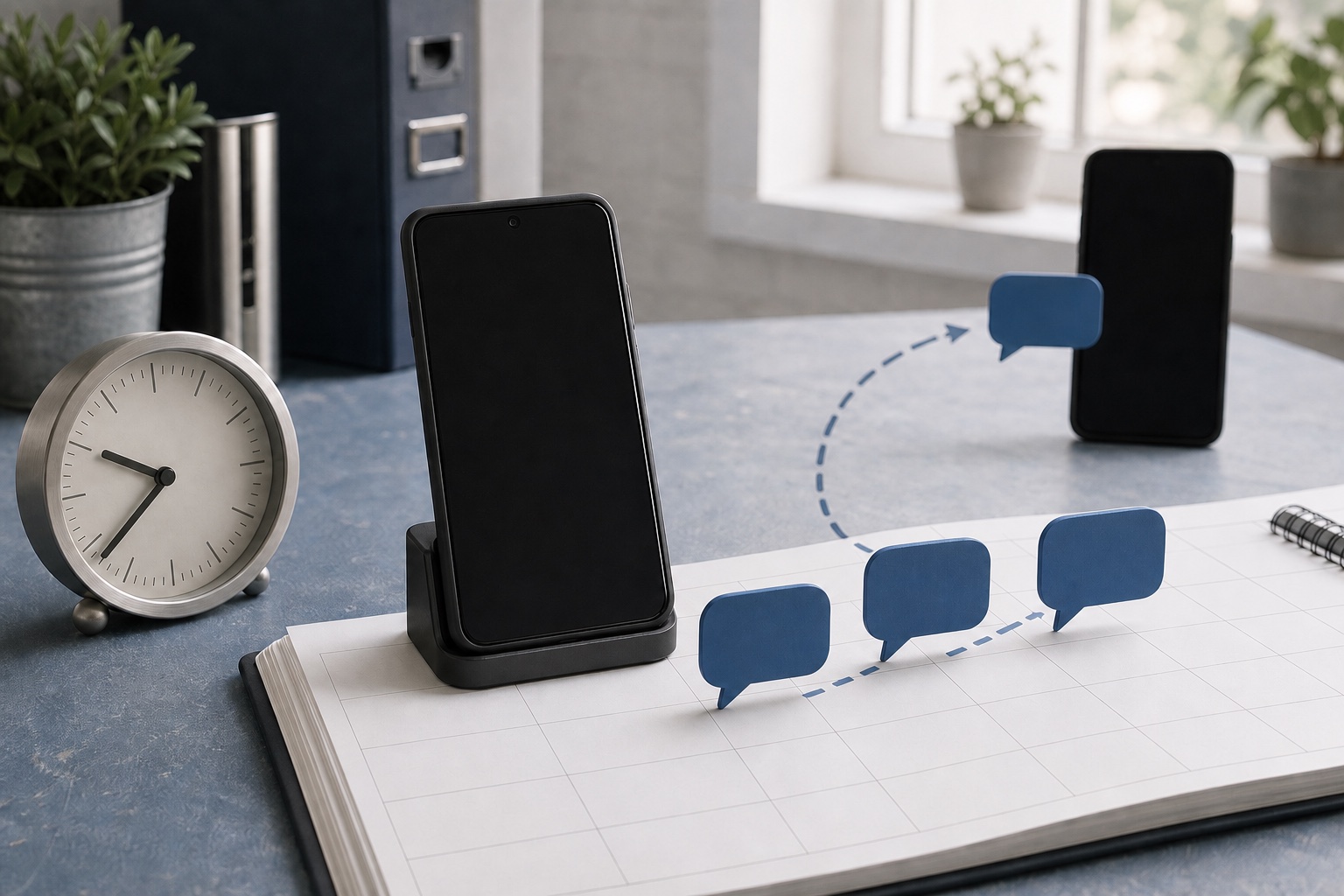
SMS scheduling: examples, timing, and automated setup
Schedule useful business texts around appointments, orders, service
dates, and recurring tasks. Your workflow chooses when to send;
VoxiSMS delivers through your connected Android phone and SIM.
Choose the app you already use as the trigger in Zapier or Make.
Build the automation and add VoxiSMS as the action. VoxiSMS sends
the text through your connected Android phone using your own phone
number.
Keep timing in the workflow that already owns the booking, order, task, or follow-up date.
Use a recurring schedule, a delay after an event, or a source-system date to decide when a text is due.
Let VoxiSMS deliver the instruction through your connected Android phone, SIM, and real mobile number.
Test time zones, edited dates, cancelled records, and an offline sender phone before activating the workflow.
Start with operational texts people expect, such as reminders, pickup notices, service updates, and staff prompts.
Practical messages
Six SMS scheduling examples
A scheduled text works best when its timing comes from a real business
record and its message gives the recipient one clear next step.
Use case
When to send
Example message
Appointment reminder
Before the booked start time
[Business]: Reminder for [service] on [date] at [time]. Reply [option] or call [number] to make a change.
Order pickup
When an order is ready, then once more before the hold window ends
[Business]: Order [reference] is ready for pickup until [date/time]. Bring [required item].
Service visit
On the morning of a scheduled visit
[Business]: Your service visit is planned for [time window] today. Reply if access details have changed.
Payment reminder
Before a recorded due date
[Business]: Invoice [reference] is due on [date]. View the invoice at [approved link] or reply for help.
Lead follow-up
After a requested form or enquiry
[Business]: Thanks for your enquiry about [topic]. Choose a time at [approved link] or reply with a question.
Recurring staff prompt
At a fixed weekday and time
[Team]: Please complete [task] by [time] and update [approved system] when finished.
Timing patterns
Choose where the timing lives
VoxiSMS is the delivery step, not a separate campaign scheduler. Keep
the clock in the automation or source system that owns the underlying
date, then pass the due message to the Android sender.
Recurring schedule
Run at a fixed interval, look up records that are due, then send
only those that pass the workflow checks. The official
Schedule by Zapier documentation covers recurring triggers, while the
Make scenario scheduling guide lists its supported run patterns.
Start with a new booking, form, order, or status change, then hold
the next action until the intended date. Zapier's
Delay Until guidance supports a mapped date and time from an earlier workflow step.
Let a booking or operations system emit the reminder event when it
becomes due. This keeps changes and cancellations close to the
source of truth. For appointments, the verified
VoxiSMS and Voxiplan workflow handles confirmations, reminders, changes, and reply routing.
The workflow records the future send point; VoxiSMS delivers the due
message through the connected Android phone.
Delivery path
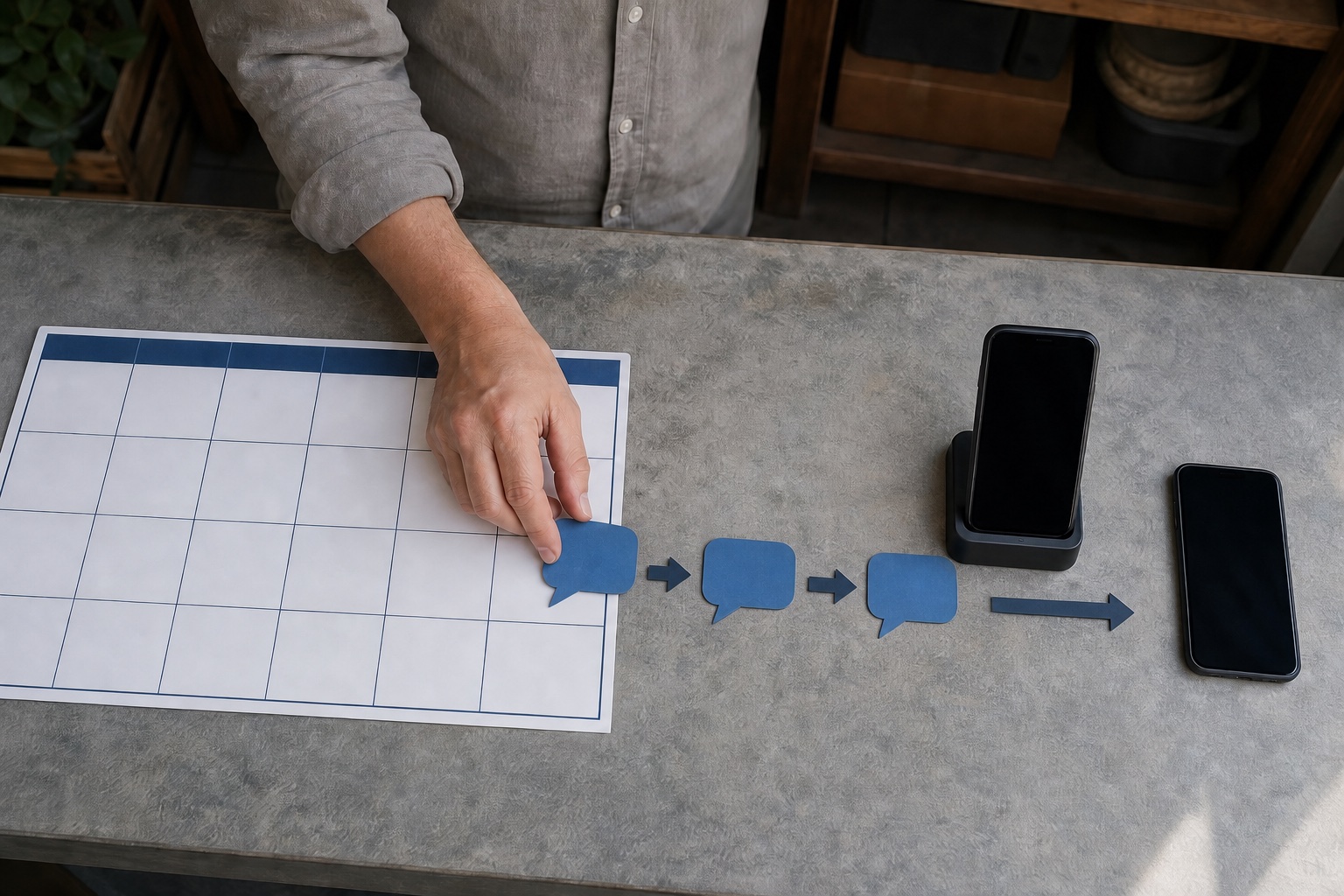
How a scheduled SMS reaches the recipient
Separating timing from delivery makes each step easier to test. The
business system supplies the event, the automation checks the send
time, and the phone handles carrier delivery.
On narrow screens, scroll horizontally to read each stage of the
timing and delivery path.
Setup path
Set up scheduled SMS in five steps
Build one complete example before adding more message types. The
VoxiSMS integrations hub helps you choose the workflow layer that matches your source event.
01
Choose the business event
Start with the record that proves a message is due: a booking, order status, invoice date, form response, or recurring task.
02
Decide where timing belongs
Use a schedule for recurring checks, a delay for event-relative follow-ups, or the source system when it already exposes the correct send time.
03
Add the eligibility check
Confirm that the record is still active, the phone number is present, and the recipient should receive this category of message.
04
Map the VoxiSMS action
Select the registered Android device, map the recipient number, and compose the message from trusted workflow fields.
05
Test the full timing path
Run examples across time zones, changed dates, cancelled records, and a temporarily offline phone before turning the workflow on.
Launch checks
Check the details that change send time
Check
Practical test
Time zone
Store one authoritative time zone with the record and confirm how the automation tool interprets it.
Changed or cancelled event
Re-check the source record immediately before sending so an old schedule does not outlive the event.
Past-due timestamp
Choose whether to skip, send immediately, or route the record for review instead of accepting the tool default blindly.
Workflow activation
Confirm that the recurring schedule or delayed step is active after editing the workflow or reconnecting an account.
Android phone offline
VoxiSMS can queue the instruction until the device reconnects, so keep the phone powered and online when timing matters.
Build the timing rule, then test the sender phone
Connect the workflow that owns the date, install VoxiSMS on an
Android phone with an active SIM, and run one internal test from the
trigger through delivery.
How timing, delivery, replies, and the Android sender phone fit together.
Does VoxiSMS have a built-in SMS scheduler?
The timing lives in Zapier, Make, Voxiplan, or the source system. VoxiSMS receives the send instruction and delivers the message through the selected Android phone and SIM.
Can I schedule recurring text messages?
Yes. Use a recurring schedule in Zapier or Make, check which records are due, and pass eligible messages to VoxiSMS. Keep recurrence and stop conditions in the workflow layer.
Can I send a text at a date stored in another app?
Yes. Map the stored date into a supported delay or schedule step, or use the source app's event trigger when it fires at the correct time. Test the date format and time zone before activation.
What happens if the Android phone is offline at send time?
VoxiSMS queues the instruction and sends it after the connected phone comes back online. Keep the device charged, connected, and ready when the message has a narrow timing window.
Can customers reply to a scheduled SMS?
Yes. The message is sent from the real mobile number in the connected phone. Replies arrive on that number and can be forwarded into Zapier, Make, or Voxiplan workflows.
Does VoxiSMS charge for every scheduled text?
VoxiSMS adds no per-message fee. The Android phone sends through the mobile plan already active on its SIM.