
Spreadsheet workflow

Send SMS from Google Sheets with Zapier or Make

Turn eligible spreadsheet rows into practical business texts sent from your own Android phone and mobile number.

Google Sheets holds the message data. Zapier or Make decides which row can run. VoxiSMS sends the SMS through the connected phone, SIM, and active mobile plan.

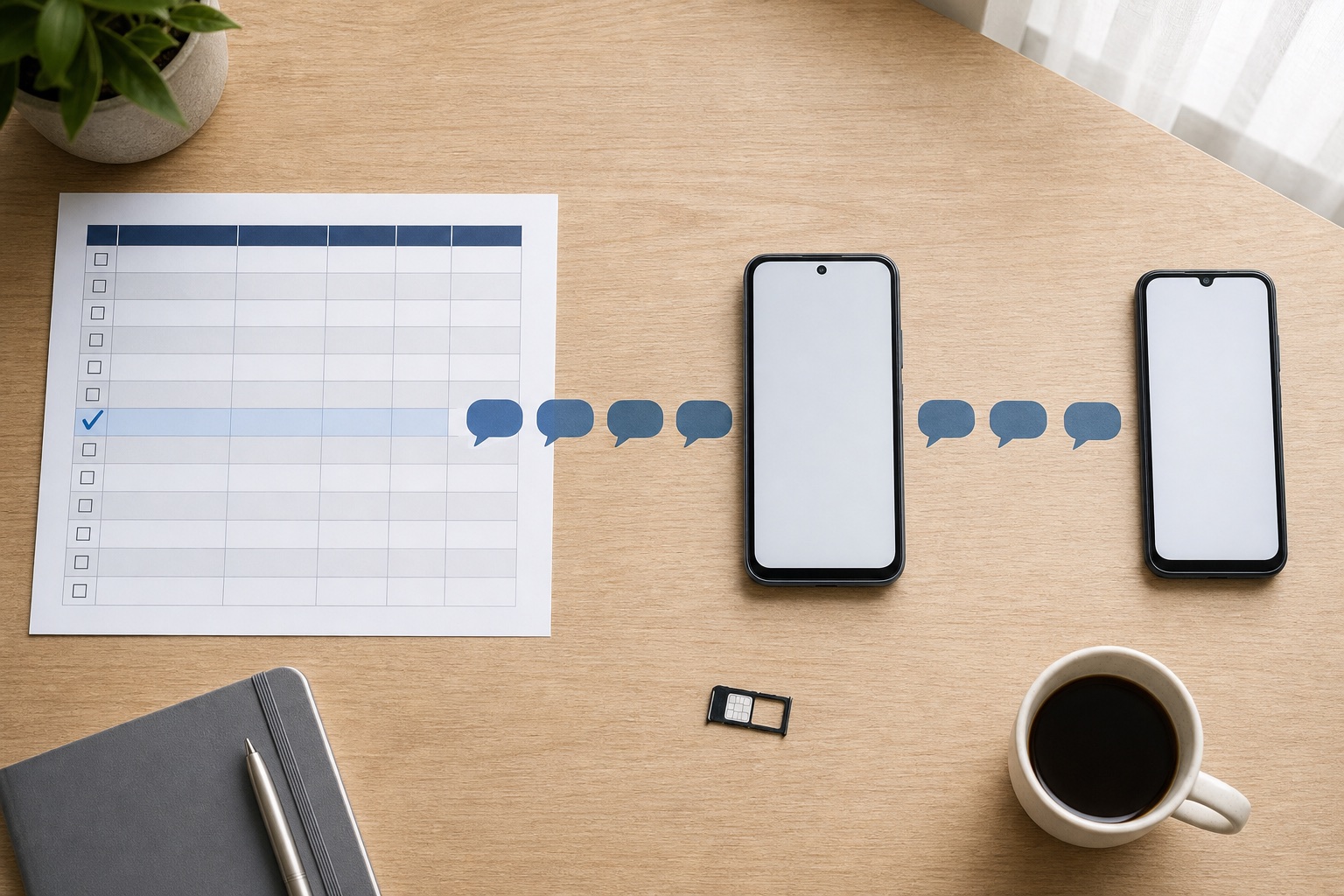
Eligible spreadsheet row routed through an Android phone to an SMS recipient

Quick answer

Google Sheets SMS in a nutshell

VoxiSMS is the Android SMS delivery step for teams that manage message jobs in Google Sheets. A supported Zapier or Make workflow reads an eligible row, maps its phone and message fields, and asks VoxiSMS to send from the business's own Android phone, SIM, real number, and active mobile plan.

See every approved VoxiSMS connection path
  • Use one row for one intended message, with a phone number, message data, and clear send status.
  • Trigger the workflow from a new or updated row in Zapier, or watch and process rows in Make.
  • Filter out incomplete, ineligible, and already-sent rows before the VoxiSMS step runs.
  • Send through your own Android phone, SIM, real mobile number, and active carrier plan.
  • Write the result back to the sheet so the next run can see what already happened.
Worksheet design

Give every SMS row a clear job

Keep the sheet simple enough to inspect before the automation runs. These columns separate eligibility, recipient data, message content, and the final result.

Column What it controls Example value
send_sms Controls whether this row is eligible to enter the workflow. YES
phone Stores the recipient number in the format expected by your automation. +1 202 555 0142
first_name Adds a useful personal field without writing a full message by hand. Jamie
message_type Chooses the approved template for an appointment, order, lead, payment, or service update. service_eta
message_data Holds the variable that makes the message useful, such as a date, order number, or arrival window. 2:00–4:00 PM
sms_status Records a pending, sent, or failed result so completed rows can be skipped. pending
Message examples

Five practical Google Sheets SMS examples

Store approved message templates in the automation, then map only the fields that change from row to row. Start with the business SMS template library when the team still needs approved copy for the workflow.

Use case Fields from the row Example text
Appointment reminder first_name, appointment_time, location Hi [first_name], your appointment is on [appointment_time] at [location]. Reply if you need to change it.
Order ready first_name, order_number, pickup_point Hi [first_name], order [order_number] is ready at [pickup_point]. Reply here if you have a question.
New enquiry first_name, enquiry_topic, owner_name Hi [first_name], [owner_name] received your enquiry about [enquiry_topic] and will follow up shortly.
Payment reminder first_name, invoice_number, due_date Hi [first_name], invoice [invoice_number] is due on [due_date]. Reply if you need the payment details again.
Field-service update first_name, arrival_window, technician_name Hi [first_name], [technician_name] is due between [arrival_window]. Reply here if access details have changed.
Choose the automation layer

Build the Google Sheets SMS workflow in Zapier or Make

Both paths keep Google Sheets as the data source and VoxiSMS as the delivery step. Choose the builder your team already uses.

Use Zapier for a direct row-to-message Zap

Choose a new or updated Google Sheets row as the trigger, add a Filter step, map the row into VoxiSMS, and update the status column after the send.

Zapier's current Google Sheets integration lists new-row, new-or-updated-row, updated-row, and row-update operations.
Use Make for scheduled row processing

Use Google Sheets modules to watch or select rows, apply filters, pass each eligible row into VoxiSMS, and write the result back into the same sheet.

Make's current Google Sheets documentation covers connecting a sheet and working with spreadsheets, rows, cells, and change-based scenarios.

Zapier setup

Send an SMS when a Google Sheets row is ready

Start with one trigger, one eligibility filter, one VoxiSMS action, and one row update. That is enough to test the complete route.

Review the VoxiSMS Zapier integration
  1. 01

    Prepare one clean worksheet

    Keep one header row and one message job per row. Add the phone, message type, template data, send flag, and status fields before building the Zap.

  2. 02

    Choose the row trigger

    Use New Spreadsheet Row when appending fresh work, or New or Updated Spreadsheet Row when a controlled field change should start the Zap.

  3. 03

    Filter for eligible rows

    Continue only when send_sms is YES, the phone and required message data are present, and sms_status is not already sent.

  4. 04

    Map the VoxiSMS action

    Choose the connected Android device, map the phone field, and build the message from the approved template and row values.

  5. 05

    Test with a controlled row

    Use your own number or another approved test recipient. Check the rendered message, sender number, and reply path before switching the Zap on.

  6. 06

    Update the row

    Write the result and send time into sms_status and sent_at. The next trigger can then skip a completed row.

Make setup

Process eligible spreadsheet rows in a Make scenario

Make is a useful fit when the scenario needs scheduled checks, several filters, or a controlled set of rows handled in one run.

Review the VoxiSMS Make integration
  1. 01

    Connect the worksheet

    Add the Google Sheets connection, choose the file and worksheet, and retrieve a small test set so each column is available for mapping.

  2. 02

    Watch or select the rows

    Use a row-based module that matches the workflow: watch new work as it arrives, or select a defined set during a scheduled scenario.

  3. 03

    Apply a filter before sending

    Require the send flag, phone number, message data, and an unsent status before the route can continue.

  4. 04

    Pass each row into VoxiSMS

    Map the row's phone and message fields into the VoxiSMS Send SMS module and select the Android device that should send it.

  5. 05

    Test one bundle first

    Run a single controlled row through the scenario, receive the SMS, and check that a reply reaches the workflow destination you configured.

  6. 06

    Store the result

    Update the sheet after the VoxiSMS step so successful and failed rows remain visible without relying on staff memory.

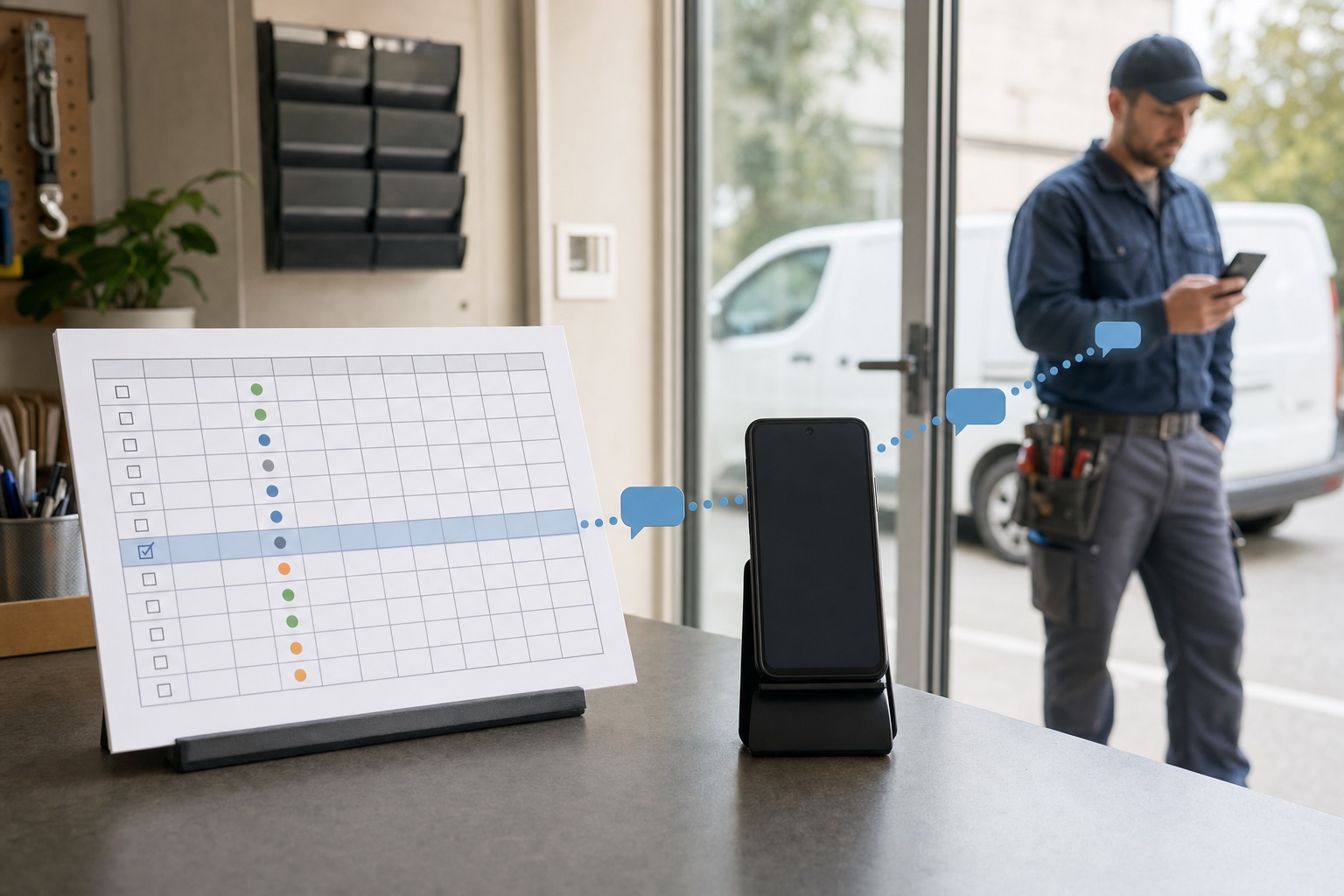
Field-service roster routed through an Android phone to an SMS received by a technician
The spreadsheet starts the job; the connected Android phone remains the real SMS sender.
Own-number delivery

Keep Google Sheets out of the telecom layer

The sheet stores business data and the automation maps it. VoxiSMS then asks the registered Android phone to send through its own SIM and active carrier plan. Customers see the real mobile number and can reply to it.

  • No rented sender is required for this workflow.
  • VoxiSMS adds no per-message fee.
  • Replies can return to a Zapier or Make webhook flow.
Delivery path

How one Google Sheets row becomes an SMS

Keep the row, filter, automation, VoxiSMS step, Android sender, and recipient in one visible path.

Six-step workflow from an eligible Google Sheets row through a filter, Zapier or Make, VoxiSMS, an Android phone and SIM, and a recipient reply

Swipe horizontally to inspect each workflow step.

Pre-launch check

Test the worksheet before it starts sending

A controlled test row shows whether the trigger, fields, message, Android device, and status update agree.

  • Keep the header row stable after mapping the automation.
  • Require every field used by the chosen message template.
  • Normalize phone numbers before the VoxiSMS action.
  • Use the status field to skip rows that already completed.
  • Keep the Android phone powered, online, and ready for background sending.
  • Test message wording and replies with controlled rows before enabling the full worksheet.

Google Sheets SMS questions, answered

Clear answers about triggers, worksheet columns, multiple rows, replies, and Android delivery.

Can Google Sheets send SMS directly?

Google Sheets stores the rows but does not send the text by itself. Zapier or Make reads an eligible row and passes its phone and message data to VoxiSMS, which sends through the connected Android phone.

Does VoxiSMS have a native Google Sheets integration?

VoxiSMS connects to Google Sheets through Zapier or Make. The sheet is the data source, the automation handles triggers and filters, and VoxiSMS is the SMS delivery step.

Which Google Sheets columns are useful for SMS automation?

Start with a send flag, phone number, message type, required template data, and send status. Add a timestamp or reference ID when the team needs to trace the result back to a business record.

Can I send multiple SMS messages from a spreadsheet?

Yes. Zapier or Make can process eligible rows one at a time. VoxiSMS fits moderate operational workflows such as reminders, order updates, lead follow-up, and service messages rather than high-throughput mass marketing.

Can replies return to the workflow?

Yes. The recipient replies to the real mobile number in the connected Android phone. VoxiSMS can forward inbound replies into a Zapier or Make webhook flow for the next business step.

Does VoxiSMS add a fee for every spreadsheet SMS?

No. VoxiSMS adds no per-message fee. The connected Android phone sends through the mobile plan already active on its SIM.

Send the first spreadsheet row from your own number

Install VoxiSMS on an Android phone, connect Google Sheets through Zapier or Make, and test one eligible row from trigger to received SMS.