CRM workflow guide

HubSpot SMS integration via Zapier or Make

Turn a HubSpot contact, form, deal, or ticket event into a useful text message. Zapier or Make carries the CRM event to VoxiSMS, and your connected Android phone sends from its own SIM and real mobile number.

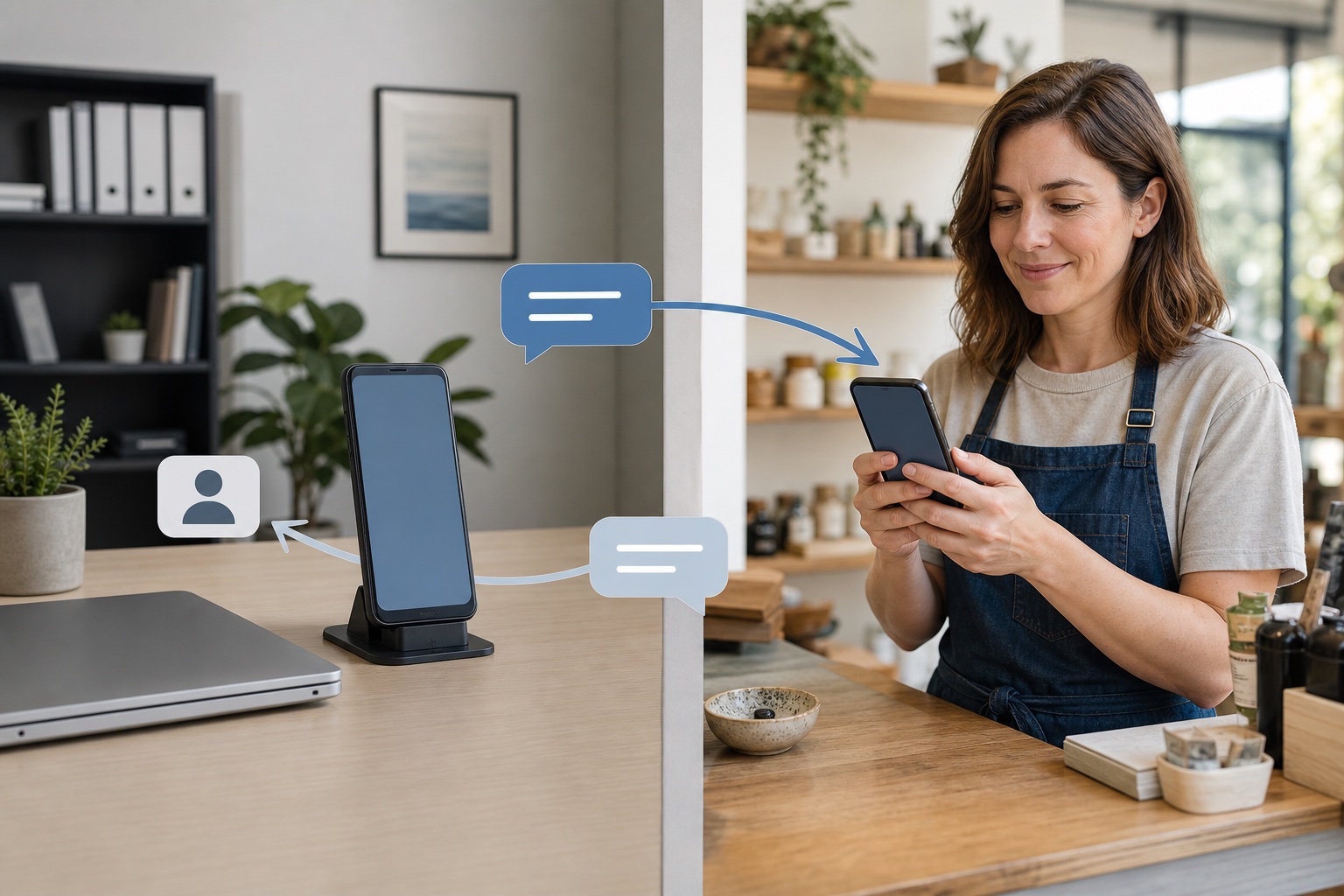
CRM contact event passing through automation steps to an Android sender phone and an SMS recipient phone

Quick answer

HubSpot SMS integration in a nutshell

VoxiSMS is an Android SMS gateway for operational and transactional workflows. For HubSpot, Zapier or Make watches the CRM event and passes the mapped phone number and message to VoxiSMS, which sends through the mobile plan already active on the connected Android phone. The speed-to-lead SMS guide shows how to turn that first response into a useful conversation.

  • Use HubSpot as the source of the contact, form, deal, or ticket event.
  • Bridge HubSpot to VoxiSMS through Zapier or Make; there is no direct native HubSpot connector in the current VoxiSMS integration set.
  • Add VoxiSMS as the SMS action and map the recipient number and message from trusted CRM fields.
  • Send through the connected Android phone, its SIM, real mobile number, and active carrier plan.
  • Route replies back into the workflow when the next step needs a team alert or CRM update.
Practical messages

Five HubSpot SMS workflows worth building first

Start with a message tied to a clear HubSpot event and give the recipient one useful next step. These examples use placeholders so the live workflow can map the correct CRM fields.

HubSpot event Useful action Example message
New HubSpot form submission Acknowledge an enquiry [Business]: Thanks for your enquiry about [topic]. [Owner] will follow up by [time]. Reply here if you need to add details.
New contact or contact update Confirm the next step [Business]: Your [meeting or service] is set for [date] at [time]. Reply to this number if anything changes.
Deal enters a selected stage Share a quote or order update [Business]: Your [quote or order] is ready. Review it at [approved link] or reply with a question.
New support ticket Set an update expectation [Business]: We received ticket [reference]. You can expect the next update by [time]. Reply with any missing detail.
New deal or assigned owner Alert the responsible teammate [Team]: New HubSpot enquiry from [name] about [topic]. Open the CRM record at [approved link].
Connection path

HubSpot starts the event; VoxiSMS handles SMS delivery

There is no native HubSpot connector in the current VoxiSMS integration set. Choose a supported no-code bridge, keep HubSpot as the CRM source of truth, and use VoxiSMS as the downstream send step.

Make path

Build a visual HubSpot scenario

Make lists HubSpot CRM modules for contacts, CRM objects, deals, form submissions, and tickets. Add filters and field mapping, then pass the eligible record to the verified VoxiSMS Make module for delivery through the selected Android device.

Current Make HubSpot modules
End-to-end flow

From a CRM event to an SMS reply

Each layer has one job: HubSpot supplies the record event, the automation filters and maps it, VoxiSMS receives the send instruction, and the Android phone handles carrier delivery.

HubSpot event flowing through Zapier or Make, VoxiSMS, and an Android phone to an SMS recipient, with replies returning to the workflow
On narrow screens, scroll horizontally to read the complete CRM, automation, Android, SMS, and reply path.
Customer replying by SMS to a business Android phone, with the response flowing back toward a CRM contact record
Two-way workflow

Put the reply somewhere your team can act on it

Messages go out from the real mobile number on the connected Android phone. When a recipient replies, VoxiSMS can forward the inbound message to a webhook, Zapier, or Make. The workflow can then alert the owner or update HubSpot if you configure that step.

  • Match the sender number to the correct contact before changing a CRM record.
  • Keep the original reply visible in the team alert or CRM note.
  • Route ambiguous matches for review instead of updating the wrong record.
Setup path

Build one HubSpot SMS workflow in six steps

Start with an internal test record and one message type. Once the full path works, reuse the pattern for the next appropriate CRM event.

  1. 01

    Install and pair the Android sender

    Install VoxiSMS on the phone that holds the business SIM. Keep the device charged, online, and ready to send from the number customers already know.

  2. 02

    Choose Zapier or Make as the bridge

    Use the automation platform your team already maintains. Both can receive HubSpot events and pass the selected fields to a downstream SMS action.

  3. 03

    Connect HubSpot in the workflow tool

    Authorize the HubSpot account, choose the correct portal, and select the event that represents a real business moment, such as a form submission or deal-stage change.

  4. 04

    Filter for the right records

    Check that the phone number is present, the record belongs to the intended workflow, and the recipient should receive that message before the SMS step runs.

  5. 05

    Map the VoxiSMS action

    Choose the registered device, map the recipient number, and compose the message with the minimum useful HubSpot fields.

  6. 06

    Test send, reply, and record handling

    Use an internal contact first. Confirm the number format, message content, delivery from the correct SIM, and any reply or CRM-update branch you configured.

Launch checks

Check the record, message, and sender together

Check Practical test
Trigger scope Use a narrow HubSpot event or filter so the workflow does not send for every contact or deal change.
Phone field Normalize the selected phone property and test the country code used by the recipient records.
Message fields Map only fields that are present and useful. Add a fallback when a name, owner, date, or link can be empty.
Record changes Re-check the record before delayed messages so a closed ticket, changed meeting, or moved deal does not receive stale copy.
Reply path Decide whether an inbound reply should alert an owner, start another automation, or update HubSpot through the workflow tool.
Android sender Send from the intended SIM and keep the connected phone powered and online for predictable delivery timing.

Connect the CRM event to an internal test number

Install VoxiSMS on the Android sender, choose Zapier or Make, and test one HubSpot event from trigger through SMS delivery before activating the workflow for real contacts.

HubSpot SMS integration questions

How the CRM trigger, automation bridge, Android sender, and reply path fit together.

Does VoxiSMS connect directly to HubSpot?

Not through a native VoxiSMS-to-HubSpot connector. Use HubSpot as the trigger in Zapier or Make, then add VoxiSMS as the SMS action in the same workflow.

Which HubSpot events can trigger an SMS?

Available events depend on the automation platform and HubSpot account. Common options include a new or updated contact, form submission, new deal, deal-stage change, and ticket event. Confirm the current trigger in Zapier or Make before building the message.

Can a HubSpot contact reply to the message?

Yes. VoxiSMS sends from the real mobile number in the connected Android phone. An inbound SMS can be forwarded into a webhook, Zapier, or Make flow, where you can define the next alert or HubSpot update.

Can the workflow send from our existing business number?

Yes, when that mobile number is active on the SIM in the connected Android phone. The recipient sees the number used by that device.

Does VoxiSMS charge for each HubSpot SMS?

VoxiSMS adds no per-message fee. The Android phone sends through the mobile plan already active on its SIM.

Should every HubSpot lead receive an automated text?

No. Start with an event where the recipient expects a message, then filter for the correct record, phone number, message type, and permission state before the send action.